
Play your first session
The stream fills the window. Everything else is behind one shortcut.
Opening the drawer
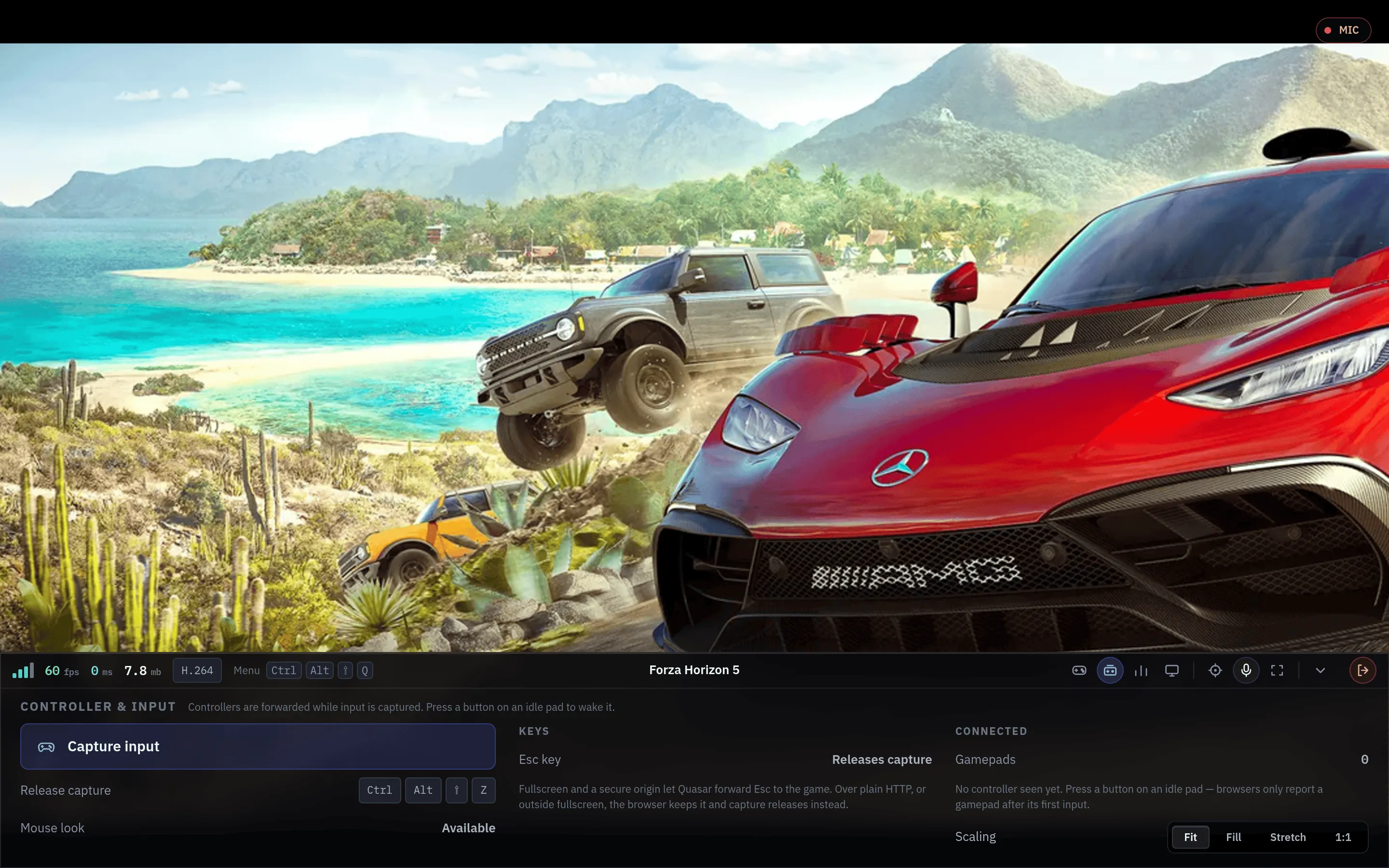
Section titled “Opening the drawer”Ctrl+Alt+Shift+Q opens and closes the drawer. Escape closes it. Touch devices get a menu button instead.
Capturing input
Section titled “Capturing input”Play goes fullscreen and captures input as soon as the game appears. For a few seconds the session bar says how to release it on your device. If the browser won’t capture without a click (Firefox), you pressed Escape while it loaded, or you opened the session from a link rather than Play, the stream shows Click to play: one click captures and goes fullscreen again.
To turn this off on one device, go to Account ▸ Stream quality and switch off Launch in full screen and capture input. Then press Capture input in the drawer yourself.
Release input with Ctrl+Alt+Shift+Z, or the way the session bar shows for your device.
The Escape key
Section titled “The Escape key”Escape reaches the game only with all three: a Chromium-based browser, fullscreen, and HTTPS. Otherwise Escape leaves fullscreen, and the drawer says what’s missing. If Escape isn’t working, check HTTPS first.
In Firefox, press Ctrl+Alt+Shift+E to send Escape to the game. See Browser support.
Fullscreen
Section titled “Fullscreen”Play goes fullscreen by itself, and leaving the session leaves fullscreen. You can also use Fullscreen in the session menu. Fullscreen, HTTPS and a Chromium browser let Escape reach the game rather than leave fullscreen.
Ending the session
Section titled “Ending the session”Press Exit session in the drawer, or close the tab. Your saves are kept in your home directory. You then get a short summary of the session.
Gamepads
Section titled “Gamepads”Press a button after connecting a controller: browsers hide it until it sends input. The drawer lists the pads it sees. The game sees a wired Xbox 360 controller.
Your input reaches only your session, not anything else on the host.
Microphone
Section titled “Microphone”If your administrator has enabled it, the bar has a microphone button. It is off at the start of every session, needs browser permission and HTTPS, and doesn’t respond while input is captured (release capture first).
A live microphone always shows a MIC indicator that can’t be hidden.
Quick switch
Section titled “Quick switch”Swap to another app without ending the session. The stream stays up while the new app starts.
Stream settings
Section titled “Stream settings”| Setting | Use it to |
|---|---|
| Scaling | Fit the stream to your browser window. |
| Stream resolution | Change the video size, up to your launch size. Return to launch size to resume automatic resolution changes when enabled. |
| Render resolution | Change the game’s rendering size, up to the launch size. |
| Interface scale | Adjust the hint used for app interface sizing. |
The launch quality sets the maximum resolution and frame rate. There is no manual frame-rate control during a session.
Performance stats
Section titled “Performance stats”Performance stats in the menu shows frame rate, latency, bitrate and jitter buffer, with a Detailed view. The session bar shows frame rate, latency and bitrate.
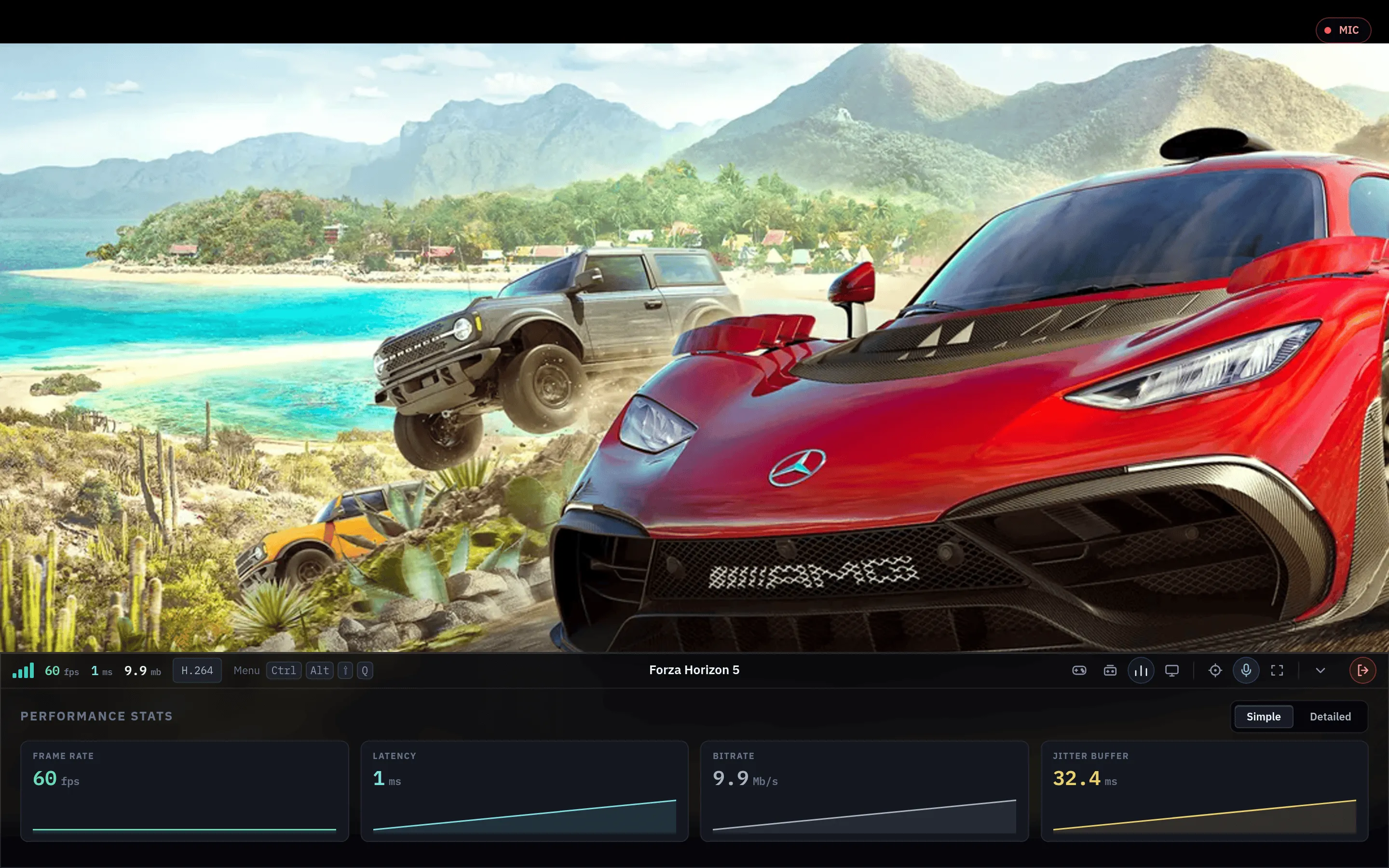
- Frame rate is what the host produces. Well below your tier means the host is the bottleneck, not the network.
- Presentation interval variation is how even the frame gaps are. This is what stutter feels like.
Health banners
Section titled “Health banners”Quasar shows a banner when the stream is in trouble. It doesn’t end or retry sessions on its own.
| Banner | Meaning |
|---|---|
| Degrading | Quality is dropping. Usually the network. |
| Unsustainable | The stream cannot hold at this level. Consider a lower tier. |
| Not supported on your device | Your browser could not decode what was sent. |
| Reconnecting | The connection dropped and Quasar is trying to recover it. |