
Console mode
Console mode shows games on a screen plugged into the host, like a games console under the television. The console desktop drives the screen itself and picks its own resolution, refresh and sound output; a console session is not streamed. Streamed sessions keep running beside it. Each host has its own page: Admin ▸ Fleet ▸ the host ▸ Local console.
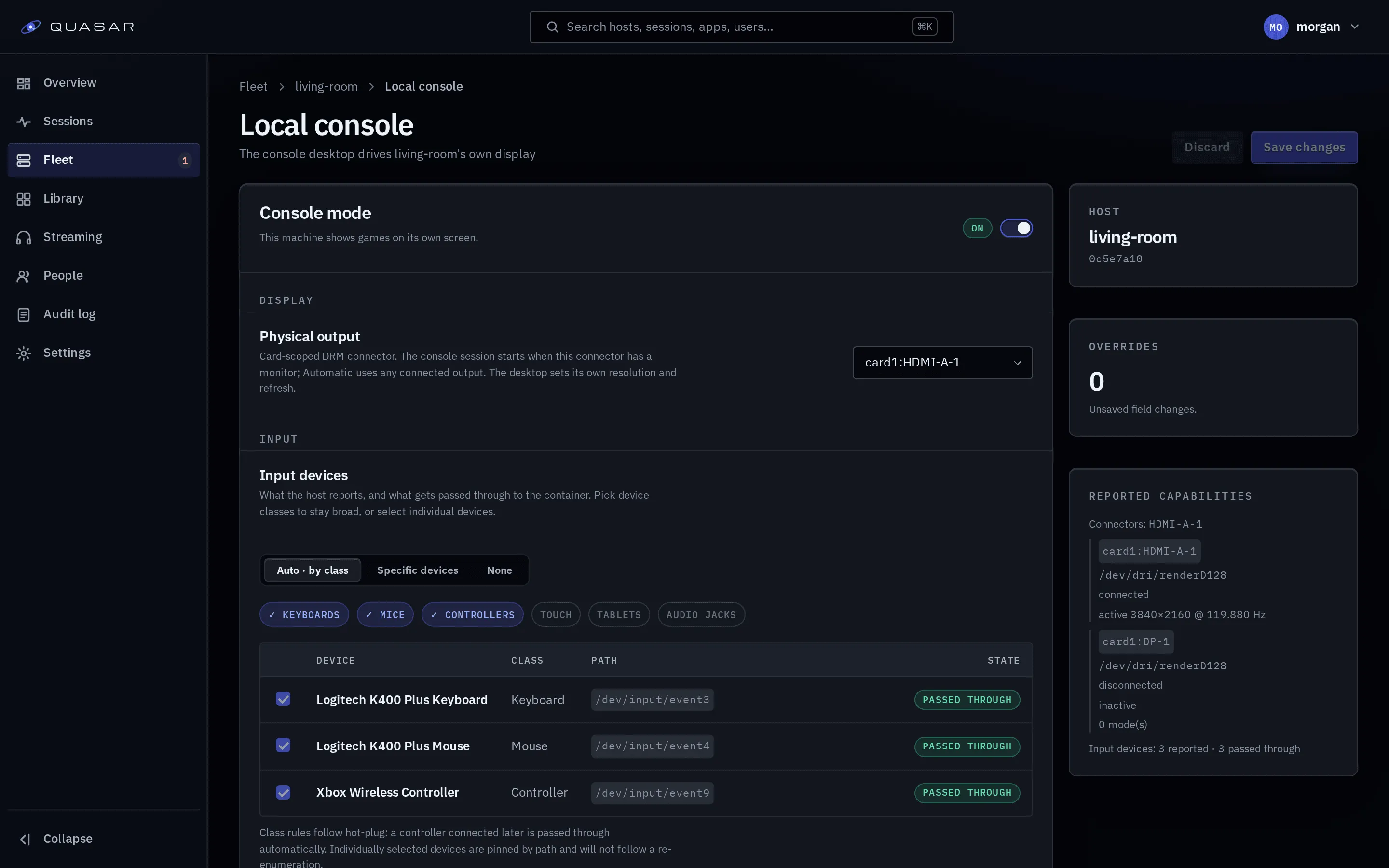
What a console session is
Section titled “What a console session is”| Setting | What it does |
|---|---|
| Physical output | Which card and connector the console uses. The session starts when that connector has a monitor. Automatic uses any connected output. |
| Input devices | Which of the host’s keyboards, mice and controllers the desktop gets. See Local input. |
| Default app, Default user, Auto-start on display | Launches that app as that user when a display comes on. See Starting on its own. |
The desktop sets its own resolution, refresh and sound output, in its own settings. The right-hand column lists the host’s connectors and modes, and its input devices.
Turning it on
Section titled “Turning it on”Turning console mode on (or off) replaces the host’s node agent with one that holds the console terminal and can read the display and monitor control. The page asks you to confirm, because this ends the host’s live sessions.
- While it runs, the page reads Applying and new sessions on the host wait.
- If the new agent is unhealthy, the old one is put back and the page shows the cause (for example, what holds the display, or the device access the host still needs). Try again retries.
- A host where console mode cannot work (no display device, for instance) reads as not available, with the reason.
A Compose or source install uses
deploy/overlays/docker-compose.console.yml
instead.
Rootful and rootless hosts
Section titled “Rootful and rootless hosts”Console mode works the same in every engine mode. Install the console rules from
Device rules first; on a rootless host this is
required. They grant the display cards, sound devices, i2c buses (monitor power over
DDC), this machine’s input devices and tty8.
- The display must be free. If a desktop or login screen holds it,
console_cardfails and names what holds it. Stop the login screen on that output, or choose another output. - Streamed games beside the console. Whether one can take the screen depends on the host; see below.
- Rootless: a device plugged in later works through the device rules alone. If one doesn’t, replug it after installing the rules.
- Devices are re-read each time console mode is turned on and at every start. If a reboot renumbers the i2c buses, the agent is replaced to pick them up.
Streamed sessions beside the console
Section titled “Streamed sessions beside the console”A streamed game is given the display card so its GPU works, but where the engine allows, it can’t open it.
| Host | Can a streamed game take the screen? |
|---|---|
| Rootful Docker or Podman, AMD or Intel GPU | No. A console session started later still gets the screen. |
| NVIDIA GPU, any engine | Yes, if it starts first. NVIDIA’s container toolkit always gives it the card. |
| Rootless Docker or Podman | Yes, if it starts first. A rootless engine can’t restrict the card. |
Where it can, start the console session first. console_card says which case your
host is in, and names a streamed game that holds the screen: end that session. A host
wrongly detected as NVIDIA gets the NVIDIA row; set QUASAR_GPU_NVIDIA=0 on its agent.
The console terminal
Section titled “The console terminal”During a console session the agent switches to virtual terminal 8 (tty8) with
the kernel keyboard off, so keys don’t reach the host’s login prompt. It switches
back when the session ends.
- The console device rules grant
tty8; no login prompt may run there (getty@tty8andautovt@tty8masked, see Device rules). If you run your owngetty@tty8, console sessions refuse to start. - If the terminal can’t be taken, sessions fail with
console terminal:and the reason. - If the agent dies holding the terminal, its next start restores it.
To get the screen back by hand, put tty8 back in text mode, then chvt to the
terminal you want.
The desktop plays through the host’s sound device, which it is given; pick the output
in its own settings. console_sound checks the host has one.
Host preparation’s --console-audio-user is retired: it is accepted and does nothing.
Files an earlier run wrote for it are named when host preparation runs; nothing uses
them.
Local input
Section titled “Local input”Input devices picks what is passed in to the console desktop: by class, by device path, or none. Auto passes every input device.
A device plugged in during a session reaches the desktop within about a second. With a list of device paths, a listed device is passed in when it appears.
Starting on its own
Section titled “Starting on its own”With Auto-start on display on and a Default app and Default user set, a display coming on launches that app as that user. The default user must have access to the app.
Default app lists only apps that can drive the display themselves (their runtime
spec declares direct_display) and are a desktop or a launcher — never a game, and
never a Steam library tile, even one under a direct-capable launcher. If the saved
default app cannot run direct or is a game, the page says so under it and console
mode does not launch it; pick another app.
Monitor power is read over DDC/CI. This needs the i2c buses (granted by
the console device rules on rootless) and a monitor that answers DDC. Without them, every
connected display counts as on. Set QUASAR_CONSOLE_DDC=0 on the agent to turn
the power reading off.
If the monitor is shared with another machine, set QUASAR_CONSOLE_INPUT_SOURCE on the
agent to the input this host is cabled to (ddcutil getvcp 60 shows it, as sl=0x10 for
example). The monitor then counts as on only while it shows this host.
Stopping a console session holds: it does not start again until the monitor reads off (which needs DDC; otherwise unplug it) and comes back, or you turn Auto-start on display off and on. A restart of the agent or the control plane is a fresh start, and lets it start again.
A monitor switched off stops the auto-started session 10 minutes after the agent
reads it as off over DDC/CI. While the console desktop runs, the agent reads the
monitor only once the console has had no keyboard, mouse or controller input for
10 minutes, then every 5 minutes, so a game with recent input never sees the read.
Some monitors drop their DisplayPort link when powered off, which looks like an
unplug and is not stopped. To stop the session once its display has been gone a
while, set QUASAR_CONSOLE_DISCONNECT_GRACE (a Go duration; 0 stops at once) on
the control plane. When it is set, it is the wait for a monitor read as off too,
in place of the 10 minutes.
Readiness
Section titled “Readiness”These checks read skipped while console mode is off, and never block a streamed session.
| Check | What it reports |
|---|---|
console_card |
The console card can be passed in and nothing else holds the display. Names what holds it, and says whether streamed games here can take it. |
console_input |
The allowed input devices exist and the quasar account can open them. |
console_sound |
The sound device can be passed in. |
console_terminal |
tty8 can be held for the session. |
console_udev |
The host’s device database (/run/udev/data) can be passed in, so devices plugged in later reach the desktop. |
console_ddc |
Whether monitor power can be read (ddcutil, a mapped i2c bus, a reading). |
console_default_app |
Shown on the console page, not the host’s list: whether the default app can run direct. A fail names the app and nothing is launched. |
See Readiness checks for fixes.
Known limits
Section titled “Known limits”- With an NVIDIA GPU passed through to a virtual machine, the console picture can stay black. The virtual machine’s own boot screen is black too, so the cause is in the hand-off of the card, not in Quasar. It has happened after the hypervisor used the card without driving a display before starting the virtual machine. Run console mode on a host that is not a virtual machine, or use another GPU.